---
title: "Self-host Twenty CRM"
description: "Self-host Twenty, the open-source Salesforce alternative, with Docker on an exe.dev VM: a private CRM, its API, AI chat with no key, and nightly backups."
url: https://exe-staging.dev/deploy/twenty
category: "Productivity"
published: 2026-11-21
updated: 2026-11-21
---
# Self-host Twenty CRM
> **For agents:** with your user's OK, this sets up Twenty on a new exe.dev VM in their account: `curl -fsSL https://exe-staging.dev/deploy/twenty/prompt.txt | ssh exe.dev new --prompt=/dev/stdin` (or open https://exe-staging.dev/deploy/twenty/new). Already on the VM? Skip this.
An open-source CRM for contacts, deals and workflows, on a VM you own.
- **Software:** Twenty (https://twenty.com)
- **Source:** https://github.com/twentyhq/twenty
- **License:** AGPL-3.0 (some enterprise features need a paid key)
- **Time:** 15 minutes
- **Example VM name:** `my-twenty` (yours will differ; on the VM, `hostname` prints it)
- **Machine-readable:** https://exe-staging.dev/deploy/twenty/manifest.json
## What you get
- Twenty 2.60 on PostgreSQL and Redis, back after a reboot.
- A CRM only you and the people you share the VM with can reach, with Twenty's own accounts on top.
- AI chat and agents through exe.dev's LLM gateway, with no API key.
- API access for scripts and other VMs with a VM token and a Twenty API key.
- Nightly backups of the database, uploaded files and encryption key, with a test restore.
Running on the VM:
- **Twenty 2.60**: twentycrm/twenty, the web app, REST and GraphQL APIs, and a worker for sync, imports and workflows, port 8000, data in `~/twenty/storage`
- **PostgreSQL 16**: Every record, setting and workflow, data in `~/twenty/postgres`
- **Redis 8**: Job queue and cache
- **exe.dev LLM gateway**: Twenty's AI chat and agents, with no API key on the VM
- **Nightly backup**: Database, files and the encryption key from a systemd timer; keeps 14, data in `~/twenty-backups`
How it is reached:
- https://my-twenty.exe.xyz/ (private): Twenty, behind exe.dev login and Twenty's own sign-in
- https://my-twenty.exe.xyz/rest/ (private): The REST, GraphQL and MCP APIs, for scripts with a VM token and a Twenty API key
## Deploy with Shelley
Open https://exe-staging.dev/deploy/twenty/new to create a VM whose agent, Shelley, follows this recipe. From a terminal:
```sh
curl -fsSL https://exe-staging.dev/deploy/twenty/prompt.txt | ssh exe.dev new --prompt=/dev/stdin
```
Or follow the steps below by hand.
[Twenty](https://twenty.com) is an open-source CRM, built as a modern
alternative to Salesforce and HubSpot: companies, people and opportunities
in fast spreadsheet-like views, a pipeline board, notes and tasks,
workflows, custom objects and fields, and a full REST and GraphQL API.
It has about 61,000 stars on GitHub and ships a new release every few
days.
On exe.dev it runs with Twenty's official Docker images on a VM with a
real disk, so your customer data lives on a machine you control. The CRM
is private from the start: only people you share the VM with can even
reach the sign-in page, and scripts get in with a VM token, so Twenty's
APIs never face the internet. Twenty's AI chat works through exe.dev's
LLM gateway with no API key, backups run every night, and Shelley, the
agent on the VM, can read the logs and change the setup for you.
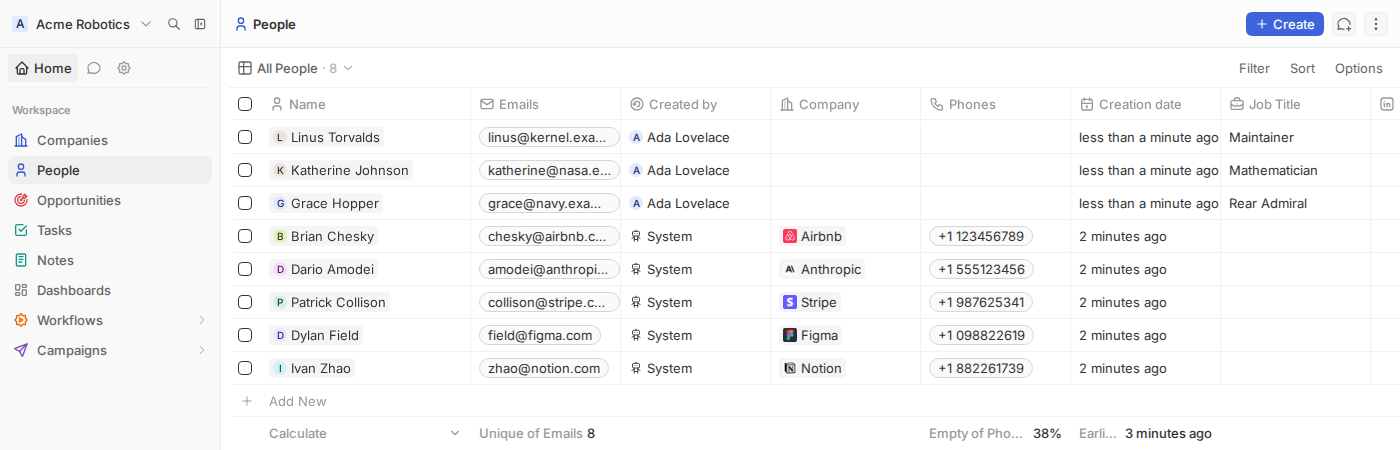
Twenty's People view on the test VM, three rows straight from a CSV import.
## Create your workspace
When Shelley finishes, open `https://my-twenty.exe.xyz/` and sign in to
exe.dev. Twenty greets you with **Welcome to your workspace**:
1. Choose **Continue with Email**, enter your email and a password (8
characters or more), and click **Sign up**.
2. Name your workspace, then fill in your name and job title.
3. Skip **Invite your team** for now.
You land on **Companies**, with five sample companies and people to play
with. The first person to sign up owns the workspace and gets the **Admin
Panel** under Settings; after that, nobody can sign up without an
invitation. Do this right after install, before you share the VM.
## Import your contacts
Open **People**, click **⋮** in the top right, and choose **Import
People**. Upload a `.csv`, `.xlsx` or `.xls` file (up to 10,000 rows),
match its columns to Twenty's fields (`First Name` to **Name / First
Name**, `Email` to **Emails / Primary Email**, and so on), check the
preview, and click **Confirm**. Columns you don't match are skipped.
Import **companies first**, then people with a company column, then
opportunities, so each row links to the records it belongs to. Twenty
matches companies by name or domain. Every list can go out again as a CSV
from the same menu (**Export View**).
## Ask the AI about your CRM
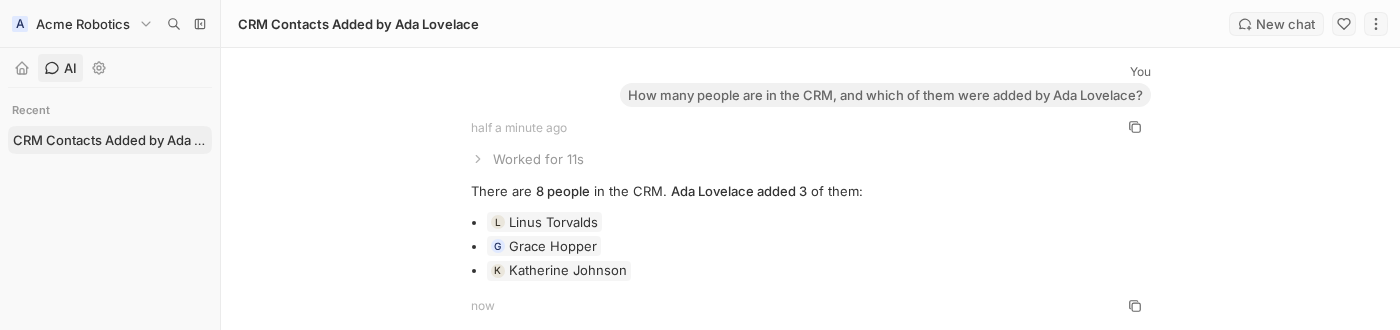
Click **AI** in the top left and ask a question in plain language:
"Which people did I add this week?", "Create a task to follow up with
Grace Hopper on Friday", "Draft a workflow that tags new companies by
industry". Twenty reads and writes records through the same permissions
you have.
Twenty's AI chat on the test VM, answered by a model behind exe.dev's gateway.
Shelley pointed Twenty's OpenAI provider at exe.dev's
[LLM gateway](/docs/integrations-llm), so there's no key to paste. Pick the
models for chat and agents under **Settings → AI → Models**. The same
models power the **AI** steps in workflows. Files you attach to a chat
don't reach the model while the VM is private (Twenty sends models a link
to them); text works.
## Bring your team
Everyone needs two things: exe.dev access to reach Twenty, and a Twenty
account. On your computer, share the VM:
```bash
ssh exe.dev share add my-twenty alice@example.com
```
Then in Twenty, go to **Settings → Members**, copy the link under
**Invite by link**, and send it to Alice. She opens it, signs in to
exe.dev, and makes her Twenty account. (Twenty's **Invite by email**
needs an SMTP server, which this setup doesn't configure.) To remove
someone, remove them in both places: **Settings → Members** and
`ssh exe.dev share remove my-twenty alice@example.com`.
Twenty doesn't read exe.dev's login headers, so your team signs in twice:
once to exe.dev, once to Twenty. Turn on two-factor authentication under
**Settings → Profile** if you want a second factor for Twenty too.
## Use the API from scripts
In Twenty, go to **Settings → Developers**, create an API key, pick its
role and expiry, and copy it (Twenty shows it once). On your computer,
make a [VM token](/docs/https-tokens-for-vms) so the script can get past
exe.dev's login:
```bash
ssh exe.dev ssh-key generate-api-key --vm=my-twenty --label=crm-scripts --exp=1y
```
A script then sends both, one header each:
```bash
curl -s https://my-twenty.exe.xyz/rest/people?limit=5 \
-H "X-Exedev-Authorization: Bearer $EXE_VM_TOKEN" \
-H "Authorization: Bearer $TWENTY_API_KEY"
curl -s -X POST https://my-twenty.exe.xyz/rest/people \
-H "X-Exedev-Authorization: Bearer $EXE_VM_TOKEN" \
-H "Authorization: Bearer $TWENTY_API_KEY" \
-H 'Content-Type: application/json' \
-d '{"name":{"firstName":"Ada","lastName":"Lovelace"},"emails":{"primaryEmail":"ada@example.com"}}'
```
exe.dev checks and strips the first header; Twenty checks the second.
Without the VM token you get exe.dev's `401`; without the Twenty key,
Twenty's `403`. The same pair works for GraphQL at `/graphql`, for the
schema at `/rest/metadata`, and for Twenty's MCP server at `/mcp`, which
lets Claude Code, Codex or Cursor on another exe.dev VM work with your CRM
(MCP clients that let you set headers can send both). Twenty allows 100
requests a minute per key, and batch calls take up to 60 records.
Going the other way, **Settings → Developers → Webhooks** makes Twenty
post record changes to a URL you choose, signed with an
`X-Twenty-Webhook-Signature` header. That URL must be reachable from the
VM, for example a [n8n](/deploy/n8n-2) webhook on another VM.
## Trigger workflows
**Workflows → Create** builds automations: when a record is created or
updated, on a schedule, by hand, or from a **Webhook** trigger. Steps can
create, update and find records, send HTTP requests, branch, wait, and
run AI prompts. Activate a workflow to make it live.
A webhook trigger shows its **Live URL**, such as
`https://my-twenty.exe.xyz/webhooks/workflows/WORKSPACE_ID/WORKFLOW_ID`.
While the VM is private, a sender reaches it with a VM token:
```bash
curl -s https://my-twenty.exe.xyz/webhooks/workflows/WORKSPACE_ID/WORKFLOW_ID \
-H "X-Exedev-Authorization: Bearer $EXE_VM_TOKEN"
# {"workflowName":null,"success":true,"workflowRunId":"18ec99a6-..."}
```
Services that can't add a header (a payment provider, a form builder)
need a public address. exe.dev makes whole ports public, not paths, so
Twenty moves to a private port and a small proxy on the public one passes
only workflow webhooks: see [Public webhooks](#public-webhooks).
## Sync email and calendars
Twenty can sync Gmail and Google Calendar, or Outlook and Microsoft 365,
and attach emails and meetings to the people and companies in them. Each
provider needs an OAuth app that you create, because Twenty's own apps
only work on Twenty Cloud. We didn't test this end to end (it needs a
Google or Microsoft account); the steps follow Twenty's
[setup guide](https://docs.twenty.com/developers/self-host/capabilities/setup).
**Google.** In the [Google Cloud console](https://console.cloud.google.com),
enable the Gmail, Google Calendar and People APIs, and create an OAuth
client ID of type **Web application** with these redirect URIs:
```text
https://my-twenty.exe.xyz/auth/google/redirect
https://my-twenty.exe.xyz/auth/google-apis/get-access-token
```
In Twenty, open **Settings → Admin Panel → Configuration Variables** and
set `AUTH_GOOGLE_CLIENT_ID`, `AUTH_GOOGLE_CLIENT_SECRET`, the two
callback URLs (`AUTH_GOOGLE_CALLBACK_URL`, `AUTH_GOOGLE_APIS_CALLBACK_URL`),
and turn on `MESSAGING_PROVIDER_GMAIL_ENABLED` and
`CALENDAR_PROVIDER_GOOGLE_ENABLED`. While the Google app is in testing
mode, add your address as a test user.
**Microsoft.** Register an app in Microsoft Entra with the delegated
permissions `Mail.ReadWrite`, `Mail.Send`, `Calendars.ReadWrite`,
`User.Read` and `offline_access` (plus `openid`, `email`, `profile`), and
the redirect URIs `/auth/microsoft/redirect` and
`/auth/microsoft-apis/get-access-token` on your VM's address. Set the
matching `AUTH_MICROSOFT_*` variables and turn on
`MESSAGING_PROVIDER_MICROSOFT_ENABLED` and
`CALENDAR_PROVIDER_MICROSOFT_ENABLED`. Mailboxes need a Microsoft 365
licence.
Then each person connects their account under **Settings → Apps
preferences**. The Google or Microsoft sign-in runs in their browser,
which is already signed in to exe.dev, and Twenty then polls for new mail
and events, so nothing has to be public. The tokens are encrypted with
the `ENCRYPTION_KEY` in `~/twenty/.env`.
**Any other mailbox.** Twenty also connects to mail servers over IMAP,
SMTP and CalDAV, with no OAuth app: add an account in the same place and
choose the IMAP/SMTP/CalDAV option, with your provider's server names and
an app password.
## Keep your data
Backups run nightly into `~/twenty-backups` and keep 14. Keep a copy **off
the VM** too. On your computer:
```bash
scp -r my-twenty.exe.xyz:twenty-backups .
```
Each backup holds the database, uploaded files and `.env` with the
encryption key, so keep them private. Never replace `~/twenty/.env`
with a new one: without its key, connected accounts and stored secrets
can't be decrypted. For whole-disk copies in your own S3 bucket, see
[VM backups](/docs/vm-backups).
## The nuts and bolts
These are Shelley's setup steps and your maintenance reference. Tested
with Twenty 2.60.1, PostgreSQL 16 and Redis 8 on November 21, 2026,
including a reboot, an update from 2.59.0, and a restore.
Install by hand
### Create a VM
On your computer (pick another name if `my-twenty` is taken):
```bash
ssh exe.dev new --name=my-twenty
ssh my-twenty.exe.xyz
```
The remaining commands run **on the VM**, as `exedev`.
### Write the settings
Twenty's address, the database password and the encryption key. The
file is created only once, so running this again keeps your key:
```bash
sudo systemctl enable --now docker.service
mkdir -p ~/twenty/storage ~/twenty/postgres
cd ~/twenty
if [ ! -f .env ]; then
(umask 077; cat > .env < compose.yaml <<'EOF'
# Twenty CRM: the server (web app and APIs) and worker (sync, imports,
# workflows), PostgreSQL and Redis. Settings and secrets come from .env.
name: twenty
x-twenty-env: &twenty-env
SERVER_URL: ${SERVER_URL}
PG_DATABASE_URL: postgres://postgres:${PG_DATABASE_PASSWORD}@db:5432/default
REDIS_URL: redis://redis:6379
STORAGE_TYPE: local
ENCRYPTION_KEY: ${ENCRYPTION_KEY}
# AI chat and agents through exe.dev's LLM gateway. The gateway needs
# no key; Twenty wants one, so any text will do.
AI_PROVIDERS: '{"openai": {"npm": "@ai-sdk/openai", "label": "OpenAI via exe.dev",
"apiKey": "exe-gateway", "baseUrl": "https://llm.int.exe.xyz/openai/v1",
"models": [{"name": "gpt-6-luna", "label": "GPT-6 Luna"},
{"name": "gpt-6.1-sol", "label": "GPT-6.1 Sol"}]}}'
services:
server:
image: twentycrm/twenty:${TAG}
stop_grace_period: 120s
volumes:
- ./storage:/app/packages/twenty-server/.local-storage
ports:
- "8000:3000"
environment:
<<: *twenty-env
NODE_PORT: 3000
depends_on:
db:
condition: service_healthy
redis:
condition: service_healthy
healthcheck:
test: curl --fail http://localhost:3000/healthz
interval: 5s
timeout: 5s
retries: 20
# The first start sets up the database and every start runs
# migrations, which can take a few minutes.
start_period: 5m
restart: unless-stopped
worker:
image: twentycrm/twenty:${TAG}
command: ["yarn", "worker:prod"]
volumes:
- ./storage:/app/packages/twenty-server/.local-storage
environment:
<<: *twenty-env
DISABLE_DB_MIGRATIONS: "true"
DISABLE_CRON_JOBS_REGISTRATION: "true"
depends_on:
db:
condition: service_healthy
server:
condition: service_healthy
restart: unless-stopped
db:
image: postgres:16
volumes:
- ./postgres:/var/lib/postgresql/data
environment:
POSTGRES_DB: default
POSTGRES_USER: postgres
POSTGRES_PASSWORD: ${PG_DATABASE_PASSWORD}
healthcheck:
test: pg_isready -U postgres -h localhost -d postgres
interval: 5s
timeout: 5s
retries: 10
restart: unless-stopped
redis:
image: redis:8
command: ["--maxmemory-policy", "noeviction"]
healthcheck:
test: ["CMD", "redis-cli", "ping"]
interval: 5s
timeout: 5s
retries: 10
restart: unless-stopped
EOF
docker compose config --quiet && echo compose ok
```
Only the server has a port: 8000, the VM's main address, which exe.dev
keeps private until you share it. The model names must be ones the
gateway serves (`curl -s https://llm.int.exe.xyz/openai/v1/models`);
Twenty fills its Fast, Smart and other modes from those you list.
### Start Twenty
The first pull is about 2.7 GB, and the first start sets up the
database, so this takes five minutes or so:
```bash
cd ~/twenty
docker compose pull -q
docker compose up -d --wait
curl -s http://localhost:8000/healthz; echo
```
Expect `{"status":"ok",...}`. Check that the server can reach the
gateway:
```bash
cd ~/twenty
docker compose exec -T server curl -s https://llm.int.exe.xyz/openai/v1/models | head -c 80; echo
```
The start of a model list means AI chat will work.
### Set up nightly backups
This script saves the database, uploaded files, `.env` and the Compose
file in one private archive, and keeps the 14 newest:
```bash
cat > ~/twenty/backup.sh <<'EOF'
#!/usr/bin/env bash
# Back up Twenty into one tarball: a PostgreSQL dump, the uploaded
# files (storage/), .env with the encryption key, and the configuration.
set -euo pipefail
umask 077
cd "$(dirname "$0")"
dest="$HOME/twenty-backups"
mkdir -p "$dest"
work=$(mktemp -d "$dest/.tmp-XXXXXX")
trap 'rm -rf "$work"' EXIT
docker compose exec -T db pg_dump -U postgres -d default --format=custom > "$work/twenty.dump"
cp -a .env compose.yaml backup.sh storage "$work/"
if [ -f nginx.conf ]; then cp -a nginx.conf "$work/"; fi
out="$dest/twenty-$(date -u +%Y%m%d-%H%M%S).tar.gz"
tar -czf "$out.part" -C "$work" .
mv "$out.part" "$out"
# Keep the 14 newest backups.
ls -1t "$dest"/twenty-*.tar.gz | tail -n +15 | xargs -r rm --
echo "$out"
EOF
chmod +x ~/twenty/backup.sh
```
Schedule it, then take a first backup:
```bash
sudo tee /etc/systemd/system/twenty-backup.service >/dev/null </dev/null <<'EOF'
[Unit]
Description=Back up Twenty every night
[Timer]
OnCalendar=*-*-* 03:30:00
RandomizedDelaySec=30m
Persistent=true
[Install]
WantedBy=timers.target
EOF
sudo systemctl daemon-reload
sudo systemctl enable --now twenty-backup.timer
sudo systemctl start twenty-backup.service
systemctl list-timers twenty-backup.timer --no-pager
ls -lh ~/twenty-backups
```
The timer shows a next run and the directory holds a tarball. For
failures: `journalctl -u twenty-backup.service`.
### Test a backup
Restore the newest backup into a **scratch database**, not the running
one:
```bash
latest=$(ls -1t ~/twenty-backups/twenty-*.tar.gz | head -n 1)
mkdir -p /tmp/twenty-restore-test/postgres
tar -xzf "$latest" -C /tmp/twenty-restore-test
cd /tmp/twenty-restore-test
docker compose -p twenty-restore-test up -d --wait db
docker compose -p twenty-restore-test exec -T db pg_restore -U postgres -d default --no-owner --exit-on-error < twenty.dump
docker compose -p twenty-restore-test exec -T db psql -U postgres -d default -tAc \
"select 'core tables: ' || count(*) from pg_tables where schemaname = 'core'"
```
Expect several dozen core tables (once the workspace exists, its data is
in a `workspace_...` schema next to them). Remove only this scratch copy
afterwards:
```bash
cd /tmp/twenty-restore-test && docker compose -p twenty-restore-test down
cd ~ && sudo rm -rf /tmp/twenty-restore-test
```
Installation done. Leave the workspace and sharing to the owner; continue
with [Create your workspace](#create-your-workspace).
Public webhooks
exe.dev can make one port public: 8000, the VM's main address. To take
workflow webhooks from services that can't send a VM token, Twenty moves
to the private port 3000 and nginx on port 8000 passes only
`/webhooks/workflows/...` and the health check. Everything else,
including the sign-in page, `/rest` and `/graphql`, redirects to port
3000, behind exe.dev login.
On the VM:
```bash
cd ~/twenty
cat > nginx.conf <<'EOF'
# Port 8000 is the port exe.dev can make public. Pass only Twenty's
# workflow webhook triggers and its health check; send everything else,
# the app and its APIs included, to the private port 3000.
server {
listen 80 default_server;
server_tokens off;
resolver 127.0.0.11 valid=10s ipv6=off;
set $twenty http://server:3000;
client_max_body_size 10m;
proxy_http_version 1.1;
proxy_set_header Host $host;
proxy_set_header X-Forwarded-For $http_x_forwarded_for;
proxy_set_header X-Forwarded-Proto $http_x_forwarded_proto;
location ~ ^/(webhooks/workflows/|healthz$) {
# Check the raw path too, so encoded tricks can't reach anything else.
if ($request_uri !~ ^/(webhooks/workflows/[0-9a-f-]+/[0-9a-f-]+/?(\?|$)|healthz$)) {
return 404;
}
proxy_pass $twenty;
}
location / {
return 302 https://$host:3000$request_uri;
}
}
EOF
sed -i "s|^SERVER_URL=.*|SERVER_URL=https://$(hostname).exe.xyz:3000|" .env
sed -i 's|"8000:3000"|"3000:3000"|' compose.yaml
cat >> compose.yaml <<'EOF'
public:
image: nginx:1.30-alpine
ports:
- "8000:80"
volumes:
- ./nginx.conf:/etc/nginx/conf.d/default.conf:ro
depends_on:
- server
restart: unless-stopped
EOF
docker compose up -d --wait
for p in /healthz /rest/people /graphql /welcome; do
printf '%s %s\n' "$(curl -s -o /dev/null -w '%{http_code}' localhost:8000$p)" $p
done
```
`/healthz` answers `200`, the rest `302`. Twenty is now at
`https://my-twenty.exe.xyz:3000/`; sign in there. Then, on your computer:
```bash
ssh exe.dev share set-public my-twenty
```
Webhook URLs in Twenty now show port 3000: give senders the same URL
without `:3000`. Anyone with a webhook URL can start that workflow, so
treat it as a secret and have the workflow check what it receives. If you
set up Google or Microsoft sync before this, add `:3000` to the redirect
URIs and callback URLs. To close the public port again:
`ssh exe.dev share set-private my-twenty`.
Back up and restore
On the VM, `~/twenty/backup.sh` makes an extra backup and prints its
path. Each archive has the database, uploaded files and encryption key;
**restore them together**.
### Restore
Make a new VM as in [Create a VM](#create-a-vm) (or use the old one),
then copy your backup over. On your computer:
```bash
scp twenty-20261121-033012.tar.gz my-twenty.exe.xyz:
```
Use your backup's actual filename here and below. The rest runs **on the
VM**. If Twenty already runs there, stop it and keep its directory aside
first:
```bash
cd ~/twenty && docker compose down
sudo mv ~/twenty ~/twenty.before-restore
```
Unpack the backup, set this VM's address, and load the database before
starting Twenty:
```bash
sudo systemctl enable --now docker.service
mkdir -p ~/twenty/postgres
tar -xzf ~/twenty-20261121-033012.tar.gz -C ~/twenty
cd ~/twenty
sed -i "s/[a-z0-9-]*\.exe\.xyz/$(hostname).exe.xyz/" .env
docker compose up -d --wait db redis
docker compose exec -T db pg_restore -U postgres -d default --no-owner --exit-on-error < twenty.dump
docker compose up -d --wait
curl -s http://localhost:8000/healthz; echo
```
Sign in and check your records. On a new VM, also recreate the backup
timer and share the VM with your team again. Keep
`~/twenty.before-restore` until you're happy.
Update Twenty
Twenty releases every few days; pick a version from its
[releases](https://github.com/twentyhq/twenty/releases) and read the
[upgrade guide](https://docs.twenty.com/developers/self-host/capabilities/upgrade-guide).
You can jump several versions at once: the server runs every migration
in between when it starts. On the VM, back up, set **only `TAG`** in
`.env` (put your version in place of `v2.60.1`), then pull and restart:
```bash
cd ~/twenty
./backup.sh
sed -i 's/^TAG=.*/TAG=v2.60.1/' .env
docker compose pull -q
docker compose up -d --wait
docker compose exec -T server yarn command:prod upgrade:status
```
`upgrade:status` lists the instance and each workspace as up to date. To
roll back, [restore the backup](#restore): an older image won't undo
database migrations.
Something not working?
On the VM:
```bash
cd ~/twenty
docker compose ps
docker compose logs --tail=100 server worker
```
- **`up --wait` fails on the first start, or the worker stays
"Created":** the server was still setting up the database. Run
`docker compose up -d --wait` again; it carries on where it stopped.
- **The page keeps redirecting, or links point to the wrong address:**
`SERVER_URL` in `.env` must match the address in your browser,
including `:3000` if you set up public webhooks. Change it, then
`docker compose up -d --wait`.
- **A script gets `401` with an HTML or text body:** that's exe.dev; send
the `X-Exedev-Authorization` header with a VM token that hasn't
expired. A JSON `401` or `403` comes from Twenty: check the API key.
- **AI chat says no model is available:** check the gateway from the
server (`docker compose exec -T server curl -s https://llm.int.exe.xyz/openai/v1/models`)
and that the models in `AI_PROVIDERS` are in its list.
- **Connected Gmail or Outlook accounts stopped syncing after a restore:**
the `.env` didn't come with the database. Restore both from the same
backup, or reconnect the accounts.
- **Out of disk:** `df -h /`. Old images from updates go with
`docker image prune`. To grow the disk, on your computer run
`ssh exe.dev resize my-twenty --disk=50GB`, then on the VM
`sudo resize2fs "$(findmnt -no SOURCE /)"`.
## Frequently asked questions
### Is self-hosted Twenty free?
Yes. Twenty is AGPL-3.0, with no limit on users or records. A few enterprise features (SSO, row-level permissions, record sharing, custom roles, audit logs) need a paid enterprise key. You pay for the VM: in our test the stack used about 2 GB of memory and 3 GB of disk for its images.
### Can I keep Twenty private and still use its API?
Yes. Scripts and other servers send a [VM token](/docs/https-tokens-for-vms) for exe.dev and a Twenty API key for Twenty, both as headers. Twenty's own security guide says to keep `/rest` and `/graphql` off the public internet, which is exactly what exe.dev does by default.
### Does Twenty's AI work without an OpenAI key?
Yes. This setup points Twenty's OpenAI provider at exe.dev's [LLM gateway](/docs/integrations-llm), so AI chat, AI workflow steps and agents work with no key on the VM. Usage counts against your exe.dev LLM allocation.
### Can Twenty sync Gmail, Google Calendar or Outlook?
Yes, once you create your own OAuth app with Google or Microsoft and give Twenty its client ID and secret; other mailboxes connect over IMAP, SMTP and CalDAV. The sign-in happens in your browser and Twenty polls for new mail, so this works while the VM is private. See [Sync email and calendars](#sync-email-and-calendars).
### Can Zapier, Make or a payment provider call Twenty?
Not while the VM is private: hosted services can't sign in to exe.dev. Run your automations on exe.dev instead ([n8n](/deploy/n8n-2) on another VM with a VM token), or open only Twenty's workflow webhooks to the internet with the [public front door](#public-webhooks).
### How do I move from Twenty Cloud or another CRM?
Export CSV files (companies first, then people, then opportunities) and import them in the same order, so people link to their companies. Each import takes up to 10,000 rows; for more, split the file or use the API.
### How much data can it hold?
As much as the VM's disk. A small CRM is a few hundred MB including attachments; you can grow the disk later, or keep files in S3 with `STORAGE_TYPE=S_3` (see [S3 storage](/deploy/s3-storage)).
## Related
- [Self-host Chatwoot](https://exe-staging.dev/deploy/chatwoot.md): Website chat, email and API conversations in one inbox you own.
- [Self-host n8n](https://exe-staging.dev/deploy/n8n-2.md): Connect your apps. Let the boring bits run themselves.
- [Self-host Metabase](https://exe-staging.dev/deploy/metabase.md): Charts for the whole team. Questions answered before the meeting.
- [Self-host PostgreSQL](https://exe-staging.dev/deploy/postgres.md): Your own Postgres on a real disk, with backups you've actually restored.
- [Self-hosted S3 storage](https://exe-staging.dev/deploy/s3-storage.md): Your own S3 bucket on a real disk. RustFS, Garage or SeaweedFS, tested.
- [Deploy a Docker Compose app from GitHub](https://exe-staging.dev/deploy/docker-compose.md): Your compose.yaml on a VM of its own. git push to deploy.